 dmd docs
Menu
-
DMD2
Getting Started
- Download & License
- License Keys
- DMD Device Registration
- App Structure
- Global Settings & Profiles
- Opening Files & Locations
App Sections
Map Guides
-
Other Apps
System Apps
Launcher & Phone
DMD HUB
-
Devices
Accessories
- Tickets
-
Development
Community
Resources
Developer APIs
- FAQs
Frequently Asked Questions
The shortcuts our team gets asked about the most — answers, screenshots, and how-to videos. Can't find what you're looking for? Open a support ticket.
DMD² App
It's ok to ask questions — but our app documentation has the deep answers if you want them.Trip Sharing puts a live link to your ride in the hands of anyone you send it to. They open it on any phone or computer, no account needed, and see your position, the trail behind you, and the messages, photos and places you drop along the way. When the ride is over you keep it as a Trip Journal with its map, timeline, photos and GPX, or discard it.
Where to start: on your DMD unit, open the HUB and tap Trip Sharing, or use the Trip Sharing row in Quick Actions. On the iPhone, open the DMD HUB app, My Stuff → My Trips, or tap the map’s share button and choose Share a trip.
From your phone while the unit shares: the DMD HUB app (My Stuff → My Trips) and the website’s quick-add page add messages, photos and places to the same trip.
Privacy: choose how much trail followers see, whether they see your speed and trip values, and an optional delay of 1 to 6 hours. Your GPX Recorder and trip meter are not affected.
Trip Sharing is part of the licensed tier. The full guide: Trip Sharing & Trip Journals.
DMD2 is usable without a license. Riding, navigating and your own files are free; a license adds the online layers, the weather features and the HUB’s online services.
Free, no license needed: the offline vector map and its themes, turn-by-turn navigation and rerouting, GPX files (load, follow, record and manage), the HUB’s GPX Manager and Location Manager (fully usable offline — organise files and folders, save and edit locations — just without sync), Roadbook, trips and rider profiles, the country-specific safety modules in full, offline place and address search, and up to three offline map downloads. On the Devices side: everything except the generic remote — OBD2, the DMD Power Box, the action cameras (DJI, Insta360, GoPro), DMD remote controllers, DMD TPMS, iPhone notification mirroring and the fuel level simulator.
A license adds: the Online Map Layers panel (satellite, the national topo rasters, hillshading, public GPS traces, custom rasters, and downloading them for offline use), the worldwide fire layers, weather, the HUB’s online side (Riding Groups, the public Discover listings, and GPX / location / profile sync), online place search results, and offline map downloads beyond the free three. On the Devices side, the only thing that needs a license is adding a generic non-DMD remote controller and its key mapping.
Two details that catch people out:
- The three free maps are a limit on how many are on the device, not on how many you may ever download. Delete one and the slot frees up, and updating a map you already have does not use a slot.
- Offline search is not cut down for free riders. The local place and address databases work in full — a license adds online results on top, for when the offline search finds nothing.
Nothing you have already set up disappears if a license lapses. The paid layers simply stop drawing, and they come back the moment the license does.
The line-by-line split is kept in one place in the manual: Free vs. Licensed.
Yes, it works — but it is no longer treated as DMD hardware, and that changes what it can do.
A SilverFox (H1, C1, or the B8J, which announces itself as one of those) now arrives in the app as a Generic Remote Controller, the same as any other Bluetooth keyboard or HID controller. You pair it and map its keys to DMD2 actions in the usual way.
What a generic remote does not get:
- The Remote Controller Menu — the long-press panel you drive at speed. It belongs to the DMD remotes (Remote 1 to 4) and the BMW Sync Box, because a generic controller has no long-press cancel function to hang it on. A generic remote gets Long Press - Touch Lock in its place.
- Double Tap functions — these belong to DMD's own hardware (Remote 1 to 4 and the BMW Sync Box), not to generic remotes.
One more thing worth knowing: the Generic Remote Controller is part of the licensed tier, while DMD's own remotes are free. Without a license you cannot add a generic remote or reopen its key mapping.
Separately, remote rows no longer show a connected dot. A handlebar remote is not continuously connected the way a phone is — the old indicator lit on the first keypress and never cleared, so it only ever meant "a key was pressed at some point". Rather than show a status we cannot honestly report, it was removed. To check a remote is really talking to the app, use Test Remote Keys in its settings.
A grid of white seams across the map almost always means the device's display scale changed while DMD2 was in the background — the Android setting usually called Display size or Screen zoom. The map engine caches rendered tiles against the scale it started with, so when it comes back to a different one the tiles and the view no longer line up.
DMD2 now repairs this itself. On returning to the app it notices the change and reloads, showing "Display scale changed — reloading…". That reload is deliberate, not a crash.
You will see a similar notice, "Map scale changed — reloading map…", after you change Map Settings → Map Scale. Same reason: reloading cleanly is the only way to avoid seams or a white map.
If stripes are still there after a reload, restart DMD2. If they survive that, the cause is the phone or tablet's own display-size setting rather than anything wrong with your map files — set it and leave it, and the map will stay clean.
The DMD2 navigation app is Android only, and that is not planned to change.
Building an application as feature-rich as DMD2 is significantly harder in the iOS environment. On top of that, most Apple devices are not suited to motorcycle use — dust, water, vibration and temperature are all problems. The Android device market simply offers better hardware for this job.
There is, however, a DMD HUB app for iPhone and iPad. It is the companion app, not the navigation app: plan routes in the GPX Planner, share GPX files and locations, join riding groups with live member tracking, and send a destination straight to your DMD2 unit for turn-by-turn navigation. You can find it on the App Store.
An iPhone also works alongside DMD2 as a phone. Pair it and its notifications are mirrored on the head unit, with no app to install on the phone.
No.
Android Auto and CarPlay are streaming systems — your pocket device runs the app and streams a stripped-down version of it to the screen. That is not suitable for DMD2.
The app would be limited to the layouts Android Auto allows, so most of what DMD2 does would simply not be there. Your phone would also be doing all the work, and would discharge much faster.
It can be a reasonable system in a car, or on a bike for short single-day rides. It is not a good solution for adventure riding, which is what DMD2 is built for.
Close DMD2 and clear its app storage. That erases everything and puts the app back to how it was on first run.
Go to Android Settings → Apps, tap DMD2, then Storage & Cache, and clear the storage. You can also press and hold the DMD2 shortcut and choose App Info → Storage & Cache.
Clearing app storage is not the same as uninstalling and reinstalling. An uninstall often leaves files and settings behind, which is exactly what you are trying to get rid of, so use clear storage.
Before you do it: if you have a license, sign in to the DMD HUB and let a sync finish, so your profiles, GPX and locations come back afterwards. Export anything you keep only on the device. And expect to download your offline maps again.
Cannot close DMD2? Use Shutdown in the Quick Menu — see the answer on exiting the app.
This is an Android protection, not a DMD2 fault. It appears when the app asks for notification access, and Android blocks that permission screen for apps installed from outside the Play Store.
Allow it manually:
- Android Settings → Apps, and tap DMD2.
- Tap Force Stop.
- Tap the three dots in the top-right corner and choose Allow restricted settings.
Then reopen DMD2 and grant the notification permission as normal. The exact wording varies a little between Android versions and manufacturers.
The two usual causes are a dead battery, or not enough valve thread to trigger the sensor pin.
A dead battery just needs replacing. If the thread is the problem, try fitting the sensor without the security nut — the extra thread is often enough.
To force a sensor into discoverable mode, either:
- Slowly unscrew the sensor from the valve. The pressure difference should make it broadcast.
- Or remove the sensor battery, wait a minute, refit it, and start the scan again.
The scan lives in the Devices section: Add New Device → DMD TPMS, or the + on the TPMS card if you already have one paired. The dialog is called Add Sensor and it keeps scanning while it is open — keep the sensor near the head unit. Sensors you have already paired are filtered out of the list, so a sensor missing from the scan may simply be one you added before.
If the dialog finds nothing at all, check that DMD2 has the Bluetooth permission in Android settings.
Recordings are saved to the My Recordings folder in your GPX library.
- Tap the GPX button in the bottom menu while the Map section is active. This opens Loaded GPX Files.
- Tap the red record-dot button at the bottom of that panel to open the GPX Recorder. (You can also reach the recorder from Quick Actions.)
- Tap My Recordings. Recordings are auto-named by date and tidied into monthly folders.
- Tap the recording you want.
- Tap SHARE FILE, then pick where it goes in Android's share sheet.
Cloud storage such as Google Drive is a good destination — it is easy to reach again from any device. If you would rather send someone a web link than the file itself, use Share Link next to it.
With a license, recordings also sync to your DMD HUB account, so you can review or rename a ride later from the HUB website without exporting anything. On a new device, Download All From Server in My Recordings pulls them back down.
See My Recordings & Sync.
The whole bar disappears for two reasons.
The screen touch lock is on. This is the common one. On a DMD device it is toggled by the assigned hardware button; on other devices there is a padlock in the top status bar. While it is locked the bottom menu and the zoom buttons are hidden and the map fills the height. The follow/compass button and the group button stay visible on purpose, so a rider using a remote can still see and change follow state. Unlock and the bar comes back exactly as it was.
You are in the route planner or Picture-in-Picture. Both take the bar away for the duration and give it back when you leave.
If the bar is there but a button is missing, that is a different setting. Settings → App Sections lets you drop Home, Devices or Roadbook from the bar so the ones you use spread out to fill the space. Map cannot be switched off, so the bar is never empty. Hiding a section only removes its button — the section still works, and its button reappears while you are in it.
If you are coming from classic DMD2: tapping the top status bar no longer toggles the bottom menu. That behaviour is gone, so an accidental tap up there is no longer the explanation.
Almost always because the map has been dropped into Free mode. Panning or zooming the map by hand does that deliberately, so you can look around without the map dragging itself back.
Tap the round follow button in the top-left corner to resume following. If the map had been rotated away from north, the first tap re-centres north and the next one resumes follow.
Each further tap steps through the follow modes — Bearing-Up, then 3D, then North-Up, then back to Bearing-Up. Bearing-Up rotates the map to your direction of travel; North-Up keeps north at the top. The map follows you in all of them.
If tapping the button does not help, the problem is the position rather than the mode. Check the GPS reading in the top status bar: it shows your fix precision in metres, and dashes when there is no usable fix. A cold start under tree cover, indoors or in a garage can take a while. Also check that DMD2 still has the location permission in Android settings.
More on the modes in Follow Modes.
Go to Map Settings → Map Language. Reach Map Settings with the Layers button in the bottom menu while the Map section is active.
The choices are English, Deutsch, Francais, Espanol, and Local — Local meaning each place is labelled in its own local name.
Changing it re-labels the map in place. There is no reload and no restart.
This is a different setting from the app's own language, which lives in Global Settings. It also depends on what the map data carries for a given place: where a name exists only in the local language, that is the name you will see whatever you pick.
Map Language is saved per rider profile, so different profiles can use different languages.
Yes, new map builds are published regularly. There is no automatic map update in DMD2, on purpose — an update that ran by itself could leave you without navigation part-way through a ride.
You are told about updates instead. The Map Configuration button on the map view shows the number of available updates, and each map carries an update badge.
To apply them, go to Map Settings → Offline Maps. Use Update All to refresh everything in one go, or open a region and update maps individually.
A data connection is required. Once an update has started, the map being updated is not available until it completes — so do this before you set off, not at a fuel stop halfway through.
Updating a map you already have does not count against the free tier's three-map limit.
Three common causes, in the order worth checking.
The connection. A slow or unstable connection is the usual one. Try again on a fast Wi-Fi network and download or update one map at a time. The download will normally complete in the end, but it can take a long time on a poor connection.
Not enough storage. Free up space by removing other apps or files, or by deleting maps for countries you no longer need. The Offline Maps panel shows your storage location and the free space on it.
The app lost access to storage. We have seen this after system updates. Clearing the app storage sorts it — see the full app reset answer, and be aware that it erases your settings.
One rarer case: if you have chosen an SD card for map storage and DMD2 loses access to the card, downloads will not proceed. Make sure the card is inserted and readable. We do not recommend SD cards for map storage — they are the most fragile part of the chain.
If a queue has got itself stuck, Cancel All Downloads at the top of the map browser stops the running download and clears the rest in one tap. Partly downloaded files are discarded; maps already on the device are untouched.
Finally, if you are on the free tier and nothing starts at all, check how many maps you already have. Without a license you can keep three maps on the device at a time. Deleting one frees a slot.
DMD2 has been rebuilt. Version 4.002 replaces the classic 3.x app. It carries the same name, the same package and the same blue icon, so it arrives as a normal update on top of your old install.
Classic DMD2 finished at 3.00290. That was its final release and it gets no further development.
The main differences you will notice:
- A new interface built around four sections — Home, Map, Devices and Roadbook — with a top status bar and a three-part bottom menu.
- The app now installs and runs without a license. Riding, navigating and your own GPX files are free.
- The DMD HUB is built in. Sign in and your profiles, GPX, locations and settings stay in step across devices and the web.
- Country-specific safety modules for Portugal, Catalunya, Australia and France, free for everyone.
Because so much has changed underneath, treat this as a new app rather than a new coat of paint. Take a moment to look through the 4.x manual — several things have moved.
Your existing data is not lost. See the separate answer on what happens to your settings, maps and GPX files when you update.
If you have already downloaded maps but the screen stays white, there are three usual causes.
The map is not centred on your position. If you downloaded the map for where you are, make sure the map is following you — tap the round follow button in the top-left corner until the icon is a filled arrow or compass.
The SD card is not being read. If your maps live on an SD card and the card is not detected, the map goes blank once you zoom in past the world overview, and DMD2 tells you the card was not detected. Your maps are still on the card and nothing has been lost. Power the device down, re-seat the card and start up again. Do not re-download in this state — you would fill internal storage with a second copy of maps you already own.
A map file is corrupted. Either the download was interrupted too many times, the storage changed, or the file is simply incomplete. Download that map again. If you have several maps, switch them all off and enable them one at a time to find the one at fault, then re-download just that one.
If the map is not blank but broken up by white lines, see the separate answer on white stripes.
No. There are online functions, but you can use the app fully offline.
The one thing that genuinely needs a connection is the initial offline map download. Once you have downloaded the maps you need you can ride with no signal at all — the map and the routing both run on the device.
Functions that need internet if you choose to use them:
- The DMD HUB — riding groups, location sharing, GPX and profile sync, and Discover
- Satellite and the national topo raster layers
- Hillshading and public GPS traces
- Weather, and the weather map overlays
- Online place and address search — offline search is always there, and a connection adds results when the offline databases find nothing
- The worldwide fire layers, and the country-specific safety modules, which fetch official feeds
Online layers can also be pre-downloaded for an area or along a GPX track, so satellite is available where there is no signal. See Online Layers.
Most of DMD2 is offline. What costs data is map tiles, and after that group riding.
Rough figures to plan with:
- Group ride — around 10 MB per hour, a little more or less depending on how many riders are in the group. This is the constant drip: positions go up and come down for the whole ride.
- Satellite view — around 35 MB per hour, depending on how much map area you cover and how far you zoom.
- Hillshading — around 40 MB per hour, on the same basis.
Anything that draws tiles over the map belongs in the same bracket, and they stack: the national topo rasters, public GPS traces, the worldwide fire layers, any custom raster you add, and the weather overlays. Be aware that the wind and temperature overlays wash the whole view rather than just the areas with weather in them, so they fetch every tile on screen.
Small by comparison, and not worth worrying about: the country-specific modules and the HUB sync, which exchange short status messages every few minutes rather than images, and the home weather card, which refreshes a few times a day.
Two things that help. Tiles you have already seen are cached, so riding the same area again costs far less than the first pass. And everything else — downloading a map, in particular — happens only when you ask for it, and should be done on a decent Wi-Fi connection.
If you want the map to use no data at all, leave the Online Map Layers off. The offline vector map and the routing work with no signal.
Those come from the country-specific modules. Each one reads the official feed for its region and warns you about things a general map cannot know — a forest road that is legally closed today, a fire burning ahead, a weather warning for the district you are riding into.
The modules available now:
- Portugal Avisos — fire bans, weather and civil-protection alerts
- Catalunya — Pla Alfa — forest-access closures and fire danger
- Australia — NSW — active bushfires and fire danger (RFS)
- Australia — Victoria — active fires and fire danger (CFA)
- France — Alerts & Zones — forest fire danger, weather warnings and low-emission zones (ZFE)
A module turns itself on the first time your position is inside its territory, which is why one may appear without you asking for it. Turn it off and it stays off.
You will find them all under Map Settings → Country Specific Modules — the Layers button in the bottom menu while the Map section is active.
They are free for everyone. No license is needed for the panel, the alerts, the briefings, the notifications or their map overlays. They tell you a road is closed or there is fire ahead, and a subscription must never decide whether a rider gets that warning. Only the generic online map layers and the worldwide fire pair are paid.
The France module has one setting worth filling in: Your Crit'Air class. France's low-emission zones restrict vehicles below a given Crit'Air class, and DMD2 reads the rule that applies to two-wheelers rather than the car rule, so you are not warned about a zone that in fact places no restriction on a motorcycle. A zone set at a given class prohibits that class and everything worse than it. If you have not set a class, DMD2 still shows the zone and its rule but will not tell you whether you personally are affected. The setting is stored per rider profile, so each machine keeps its own.
More detail in the Warnings guide.
Sign in to the DMD HUB on both devices. There is no file to copy by hand.
The HUB keeps these in step with your account:
- Rider profiles and their settings
- GPX — tracks, routes, waypoints and folders
- Saved locations
- App settings, which you can also edit from the HUB website
Recordings sync as well. On the new device open the GPX Recorder, go to My Recordings and use Download All From Server to pull your rides down.
Two things to know before you wipe the old device:
- HUB sync is part of the licensed tier. Signing in is free, and stays free precisely so a license can be restored — but the sync itself needs a license. Without one, copy or share your GPX files across yourself.
- Offline maps do not travel. They are a physical download, so you download them again on the new device.
Let the first sync finish on the new device before you clear the old one.
Yes.
A subscription bought on Google Play belongs to your Google account, so any device signed in to that same Google account and running the Play version of DMD2 picks it up by itself.
For a device that is not on that Google account, sign in to the DMD HUB with your account on both devices — the license is carried to your other devices through the HUB.
A DMD Navigation unit needs none of this. Its license is built into the hardware, and it does not consume anything from a subscription you may also hold.
There are two separate things here and they are easy to mix up.
- Your license is what unlocks the paid features. A purchase made on Google Play is found by the Play build on its own — there is no login step for it.
- Your DMD HUB account is a separate email and password, used for sync, riding groups and Discover. Creating one does not give you a license, and buying a license does not create one.
If Online Map Layers still reports No License Found after you have paid, work through this:
- Check the device is signed in to Google Play with the same Google account that made the purchase.
- Check you are running the Play build. The sideloaded APK has no Play billing connection and cannot see a Play purchase — a DMD Navigation unit is licensed by its hardware instead, so it needs neither.
- Give the app a moment on first launch with a working connection so it can check with Google.
- If you paid with a slow payment method the purchase may still be pending with Google. It unlocks nothing until Google confirms it; relaunch the app once it has.
- If the license belongs to your HUB account, sign in to the HUB on the device. Note that signing out of the HUB also removes a license that came from your account. A Play purchase and an activated offline key are not affected by signing out.
If it still will not activate, open a ticket and tell us the email address the purchase was made with.
There are four ways, and only one of them will apply to you.
- A DMD device. If you ride a DMD Navigation unit the license is built into the hardware. Install and you are activated, with nothing to enter and nothing to sign in to.
- An offline license key. If we issued you a key, go to Settings → License, find the Thork Racing Offline Key section, paste the key and tap Activate. It is one key per device, and the same screen has Release From This Device if you later need to move it.
- An existing Google Play purchase. If you already bought DMD2 on Google Play there is nothing to do — install the Play version and it finds the purchase on first launch. The old 3.x workaround of opening classic first and signing in to the HUB is obsolete; do not do it.
- An in-app subscription. Buy one straight from the app — 6 or 12 months through Google Play, cancel any time. This is offered in the Play version.
The lifetime product is still honoured for everyone who already owns it, but it is no longer sold.
If you bought your license from our shop rather than through Google Play, sign in to the DMD HUB on the device with that account and the license is applied from your account.
One thing to know if you ride away from signal for a long time: a license that comes from a subscription is re-checked periodically, so the device needs to reach the internet occasionally. After roughly a month with no contact at all it will stop until the device is next online. A DMD hardware license never needs this.
See the download and license page for more on each route.
Play Store updates only work when DMD2 was installed from the Play Store.
There are two ways to get DMD2 and they update by different routes:
- Google Play — the route for any device that has the Play Store. Updates arrive through Play like any other app. This build has no in-app updater and no App Update row in Settings, because Play does not allow an app to update itself from outside the store.
- Sideloaded APK — the route for DMD Navigation units and anything else without the Play Store. This build checks for new releases itself and prompts you to update in place.
If your device is a DMD Navigation unit, or you installed the APK yourself, you have the second one. Take the in-app update when it appears, do not go looking in the Play Store, and do not worry that Play shows nothing.
You cannot simply move from one route to the other. Both builds share a package name but are signed with different keys, so Android will not install one over the other. Switching means uninstalling first, and that clears the app's data. If you must do it, sign in to the DMD HUB and let a sync finish beforehand, and expect to download your offline maps again.
Both routes are described on the app download page.
The first time 4.x starts on a device that had classic DMD2, it asks you. The dialog is titled Welcome to the new DMD2 and offers two choices:
- Migrate my data — keeps your settings, GPX files, saved locations, roadbooks, licence and sign-in.
- Start Clean — sets up fresh and frees the space the old data was using.
Your downloaded maps are kept either way. They are picked up where they already are, so there is no re-download and nothing to move.
Nothing is read or changed until you answer. If the dialog is dismissed, it comes back on the next launch.
What Migrate brings across: your units (mph, Fahrenheit, psi, 24-hour clock), app language, map storage location, your odometer and trip totals for each profile, your licence key, and your HUB sign-in so you do not have to log in again. GPX files from the old Imported and Recordings folders come over, along with your saved locations and imported roadbooks.
What it does not bring: map theme, warning settings, dashboard layout and device pairings. 4.x is a different app underneath, so those start at the new defaults. Set them up before your next ride rather than at the roadside.
After migrating you may be asked Update your maps?. Your existing maps are ready to use and you can ride right now — downloading them again in the new format is what adds offline address search and speed cameras. Tap Later if you are not on Wi-Fi; it is always available again from Map Downloads.
If your HUB account already holds settings and trip data from another device, you are asked which set wins: Keep this device's data or Use my HUB account's data.
Two cautions:
- If you keep your maps on a removable SD card, choose Migrate rather than Start Clean. It is the safer path for that setup.
- If your old GPX files and roadbooks lived on an SD card and you are on Android 11 or newer, check they actually arrived. Newer Android versions restrict what an app may read from a card, so you may need to import those files by hand.
Devices
Common device questions across the DMD hardware family.This is not uncommon and is due to the screen being activated by water drops. Using the Manage App (a system app available on all our devices), configure one of the available device hardware buttons to enable/disable screen touch. This way, when riding in the rain, you can lock the screen touch!
Inside the DMD2 app you will even find an option to automate this while you ride and you can even assign this function to one remote controller button.

The Manage app is a device system application, specific to DMD Navigation devices. If you have a DMD Navigation device and you cannot find these apps pre-installed, please contact support, we can easily fix it with a remote FW update push.
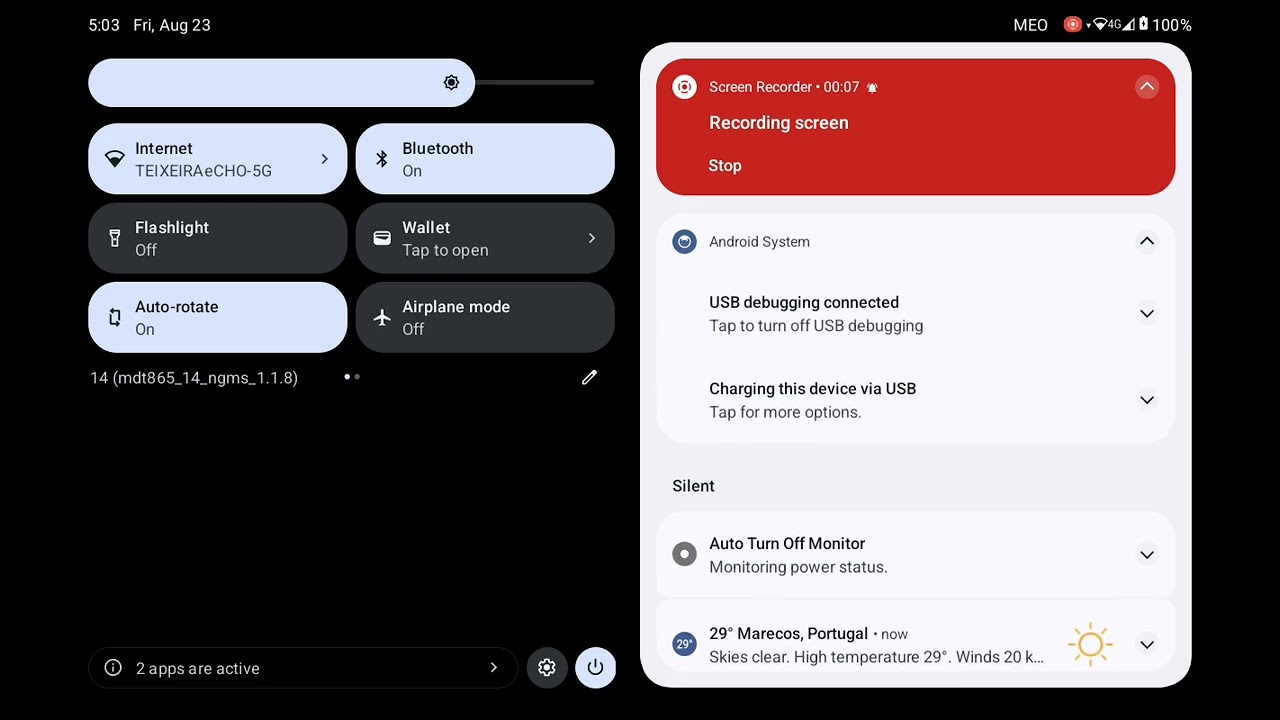
By default when you plug our devices to a PC it will only charge the device.
If you want to access the device files from the PC you need to enable File Transfer in the device settings.
To do this you can check this video:
- Swipe down from the top of your screen
- Tap on the notification that says "Charging this device via USB"
- In the USB Preferences enable "Use USB for - File Transfer"
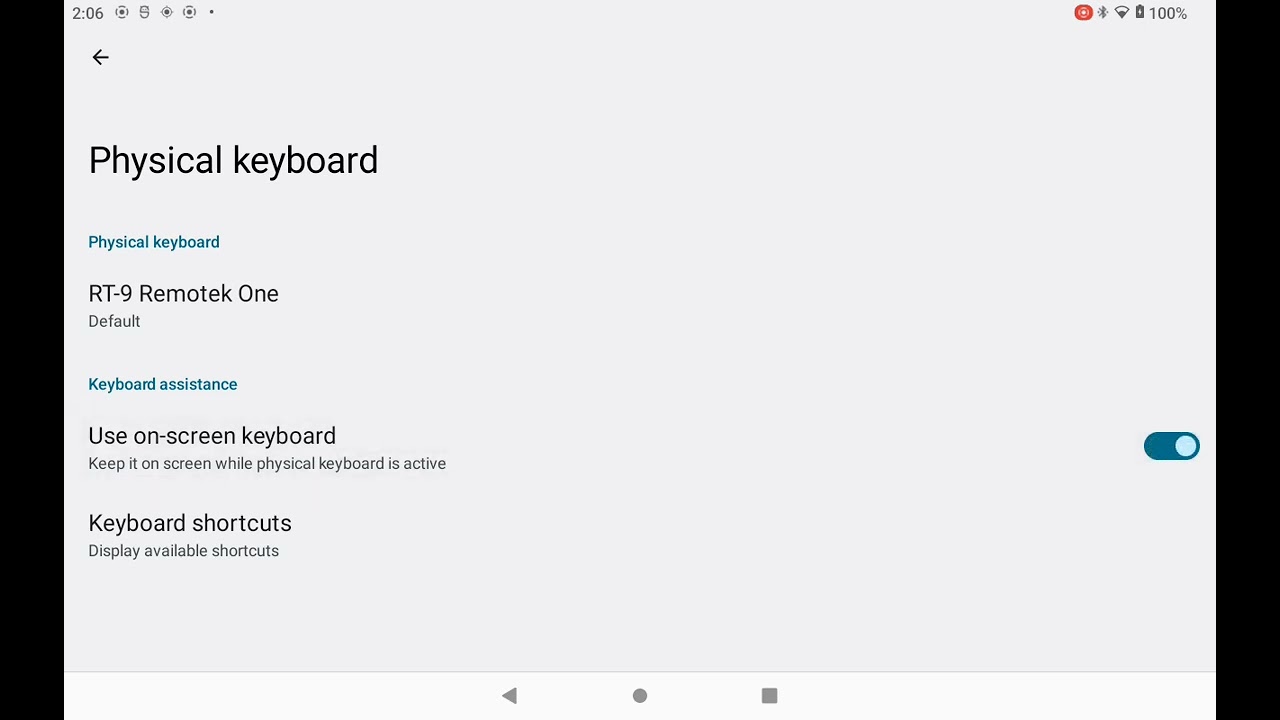
If no on-screen keyboard pops up when you tap on any text input type box chances are you need to enable the "On-Screen Keyboard" setting in the Android input settings. This usually is required to do once when you connect a remote controller by bluetooth.
You can find this setting in Android Settings app > System > Language / Input.
In the video you can see a case for this issue, you can also notice that when this happens you usually have a persistent notification that you can tap to then enable the on-screen keyboard.
Updates from the Google PlayStore only work when DMD2 was installed from the PlayStore. If the device is a DMD Navigation unit, or you have installed the DMD2 APK version, updates are pushed automatically and you get a notification to update from within the app - do not use the PlayStore for updates and do not worry about Play Store.

If the exit button is not available in the bottom menu, chances are, you set DMD2 as your device default home app.
The default home launcher is the app which is shown when your device first starts or when you press the home button.
Some users want their devices to behave more like a traditional Android device, with a regular or stock launcher where they can launch any app including DMD2. Other users will use the tablet mostly on their motorcycles and want DMD2 to be the default home app. For this reason DMD2 can be setup as the default home app or you can use it as a regular app.
Whatever you prefer, notice that you can always change this at any time. The default home app is an Android setting that can be changed in the Android settings.
The place where you change this is in Android Settings > Apps > Default apps > Home app.
Check the video bellow to see how to get to the "default home" Android setting:

In short, NO. Our devices include a GPS chip and antenna and you can use any navigation app without a SIM Card.
You should however be aware that there are both online navigation apps (which require internet connection) and off-line apps (that do not require any connection), usually offline navigation apps will allow you to pre-download all the map data so that you can use the device offline.
For the DMD2 app, internet connectivity is only needed to conduct online search for addresses, download maps, some extra optional online map layers and for the Group Share functionality, otherwise, it can remain offline and fully functional.
If you want any of the online features while riding, you can share your pocket phone internet connection (hotspot) or use a SIM card if your device supports it.