
Manage App
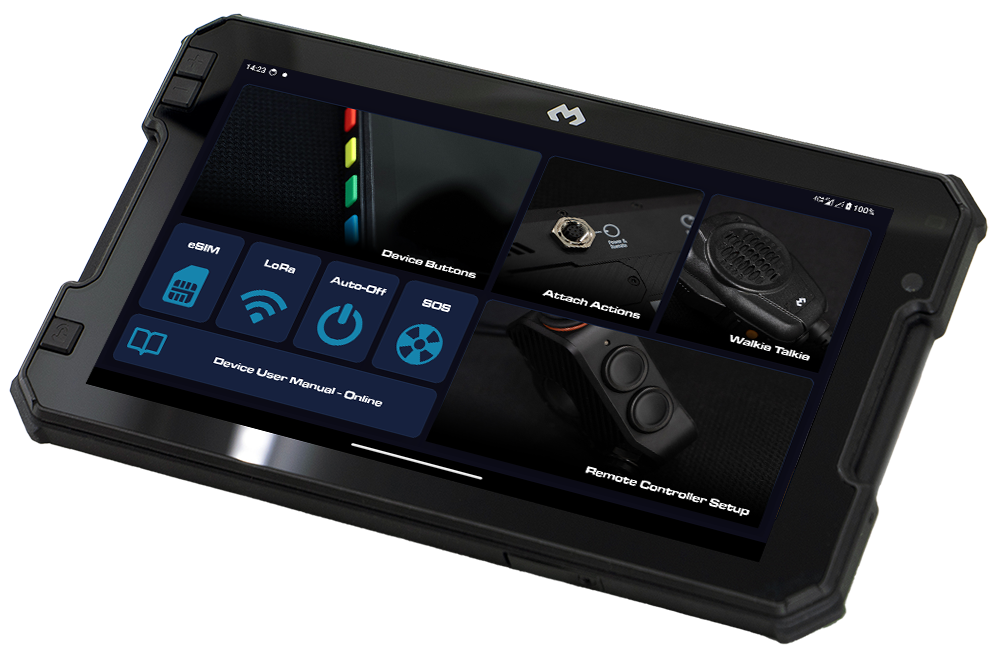
Your central hub for configuring your DMD device — set up remote controllers, device buttons, holder actions, walkie-talkie, and launch every companion app (Auto Off, SOS, LoRa, eSIM).
Overview
The Manage App is the main settings hub on your DMD device. It provides access to all hardware configuration and companion apps from a single screen.
Controller Setup
Device Buttons
Holder Actions
Walkie Talkie
Install on non-DMD Devices
On a DMD device the Manage App is part of the system — it is already installed and keeps itself up to date, so there is nothing to download here. On an ordinary Android phone or tablet you install it once from this page. After that the app checks for new versions on its own and offers them to you.
Manage App for Android
Remote Controller Setup
Configure your DMD remote controller or compatible third-party controller. The app auto-detects your controller when you press any button on it.
Connection Mode
Choose between wired (cable) or wireless (Bluetooth) connection. Toggle the "Use Cable Connection" switch to change modes.
Controller Options
- Invert 2-Way Switch
- Reverses the direction of the toggle switch on compatible controllers.
- Invert Left/Right & Up/Down
- Available for BMW Sync — reverses the zoom control directions.
- Reduce Joystick Sensitivity
- Lowers the joystick resolution for more precise control. Available on Remote 4.
- Firmware Update
- When a firmware update is available for your controller (e.g., the BMW Sync Box), an update button will appear. Box firmware updates need the box connected by Bluetooth, with Use Cable Connection off.
Controller Status
The controller screen shows real-time information: firmware version, connection status (wired/wireless/waiting), and battery level (Remote 4). The controller model and brand logo are automatically displayed after detection.
Holder / Cable Actions
Configure what happens when your device is inserted into or removed from the holder (dock) or M9 cable.
Holder Insert Actions
Two actions can be configured when the device is docked:
- Start DMD2
- Go To Home
- Enable/Disable Screen Touch
- Start User App
- Do Nothing
Holder Remove Actions
Two actions can be configured when the device is undocked:
- Close DMD2
- Go To Home
- Turn Off Screen
- Enable/Disable Screen Touch
- Start User App
- Do Nothing
Walkie Talkie
Configure the Push-to-Talk (PTT) button for use with Zello or similar walkie-talkie apps.
P1 (SOS Button) Functions
- Zello + SOS + Help Me — Combined PTT and emergency trigger
- Zello Emergency — Direct Zello emergency alert
- SOS + Group Help Me — Trigger SOS and notify your DMD2 riding group
- Group Help Me Toggle — Toggle help status in your DMD2 group
- Switch User App / DMD2 — Toggle between a custom app and DMD2
- Do Nothing
Volume Button Functions
- Volume Control — Standard volume up/down
- Zello Channel — Switch between Zello channels
Don't have Zello? The Walkie Talkie screen includes a direct link to download Zello from the Play Store.
Yamaha Ténéré 700 ABS Memory
On a Yamaha Ténéré 700, the CAN Cable can remember your ABS choice, like the plug-in “ABS memory” dongles. Manage recognises the bike by itself: switch the ignition on and the CAN Cable screen shows a Yamaha Ténéré 700 · ABS Memory panel with the ABS state, what last happened, and three modes:
- Stock — the bike’s own behaviour: ABS is on at every ignition.
- Remember last — at every ignition ABS goes back to how you last left it.
- Always ABS off — at every ignition ABS is switched off; press the ABS button on the dash to ride that ride with ABS.
The cable only ever switches ABS off by itself, with the bike standing, once per ignition, and never after you switched ABS back on yourself. The dash ABS light always shows the real state. Manage keeps the mode; DMD2 and Mini Launcher show the same state and can change the mode or switch ABS on and off from their own screens — see the DMD2 manual. Riding without ABS is your choice and your responsibility.
BMW Sync through the CAN Cable
On a BMW Motorrad the CAN Cable can stand in for the BMW Sync Box. Manage reads the Wonder Wheel and the bike’s sensors off the bike’s bus, the way the box does, and hands them to DMD2 and Mini Launcher as BMW Sync. Nothing needs setting up: switch the ignition on and Manage recognises the BMW by itself.
Plug the cable into the bike’s alarm (DWA) / accessory connector with a Y-splitter, not into the diagnostic socket: the diagnostic socket carries only OBD, so there the cable works as an OBD cable only. The wiring is in the DMD2 manual.
- The CAN Cable screen shows a BMW MOTORRAD · SENT TO DMD2 AS BMW SYNC section above the OBD2 readings: Gear, RPM, Engine Temp, Ambient Temp, the front and rear tyres and Throttle. A value reads “--” until the bike sends it, and a tyre sensor that isn’t reporting reads “no signal”.
- The Remote Controller screen shows the cable as BMW SYNC VIA CAN CABLE, with Connected - BMW bus on the CAN cable, and the usual BMW Sync settings such as Invert Left/Right & Up/Down. The Use Cable Connection switch is greyed out and the firmware update is hidden: both belong to the box. When the bike goes quiet it says BMW bus not detected - check the CAN cable: that is normal with the ignition off; otherwise check where the cable is plugged in.
Companion Apps
The Manage App provides quick access to all DMD companion apps. Tap any of the following from the main screen to launch them:
eSIM
SIM management
T880X / NorteThe main screen also includes a "Device Manual" button that opens the online documentation for your specific device model.
Supported Controllers
| Controller | Connection |
|---|---|
| DMD Remote 1 | Wired / Bluetooth |
| DMD Remote 2 | Wired / Bluetooth |
| DMD Remote 3 | Wired / Bluetooth |
| DMD Remote 4 | Bluetooth only |
| BMW Sync — BMW Sync Box | Wired / Bluetooth |
| BMW Sync — CAN Cable on a BMW | CAN Cable (found by itself) |
Troubleshooting
- Make sure the Accessibility Service is enabled (the app will prompt you if it's not).
- If using cable, check the physical connection.
- If using Bluetooth, ensure the controller is paired in Android Bluetooth settings first.
- Press any button on the controller — the app auto-detects on button press.
- Try toggling between cable and Bluetooth modes.
- Verify the Accessibility Service is enabled — this is required for all button remapping.
- Check that the correct action is assigned to the button in Device Buttons settings.
- If using a DMD2-specific action, make sure DMD2 is running.
- Restart the Manage App if settings appear unresponsive.
- Make sure the device properly detects dock insertion (check if other dock-dependent features work).
- Verify actions are set to something other than "Do Nothing".
- The Accessibility Service must be active.
- LoRa: Available on T865X, T880X, and Norte only (requires built-in or plug-in LoRa module).
- eSIM: Available on T880X and Norte only.
- The T665 does not support LoRa or eSIM.
- To turn it back on, open Updates in the Manage App and tap Turn On DMD2.
- If you don’t see that button, open Android Settings › Apps › DMD2 and tap Enable. Leave the ⋮ menu on that screen alone: Uninstall updates there puts DMD2 back to its factory version and erases its data.
- Once DMD2 is on again, it is updated as usual. If a newer version is waiting, Updates asks for your OK before installing it.
- The first time you open the Manage App after it gained this option, it asks Keep DMD2 Dev? Tap Keep DMD2 Dev to carry on testing new features, or Released DMD2 Only to turn it off. You are only asked when the normal DMD2 is installed and on, so you are never left without a navigation app.
- You can change your mind at any time: open Updates in the Manage App and tap Turn Off DMD2 Dev or Turn On DMD2 Dev under the list.
- Turning it off removes it from your app list, stops it running and stops it being updated. Nothing it has stored is deleted. In Updates its row reads “Turned off — not being updated”. Turning it back on puts it back in your app list, and it is updated again.
- On some devices the switch happens at once. On others Android asks you to confirm it yourself: the Manage App opens DMD2 Dev’s App info screen, where you tap Disable and then Disable app (or Enable to turn it back on). Leave the ⋮ menu on that screen alone: Uninstall updates there puts DMD2 Dev back to its factory version and erases its data.